Step 3: Export data
Important: Do not export the scouts and phoenix reports, or any interrupted sequences—only export the sequences of interest to PLUS_EXPORT.
Carefully check your data before exporting. Use the following checklist to ensure all data is exported in the correct format and is ready for automatic conversion. Any problems in the filenames will block conversion, so ensure there are no errors before exporting. If you find a mistake before exporting, it can be corrected.
Data Export Checklist
- The scanning session was documented
- All scanning sequences planned for this session have been executed
- Interrupted sequences were reacquired and the interrupted data has not been selected for export
- All sequences selected for export follow the correct naming conventions
- All data of interest has been selected for export
- The subject identifier follows the correct naming convention:
<researchgroup>_<project>_<subid>_<session>
Correcting a Wrong Subject or Sequence Name
Warning: Do not change the subject or sequence name during data acquisition!
Changing the subject name while a scanning sequence is running will delete the directory the scanner is currently writing data to. The same is true for altering a sequence name while the sequence is still running. This will cause an error and a potential system failure.
Only change the name after the entire session for that subject has been completed.
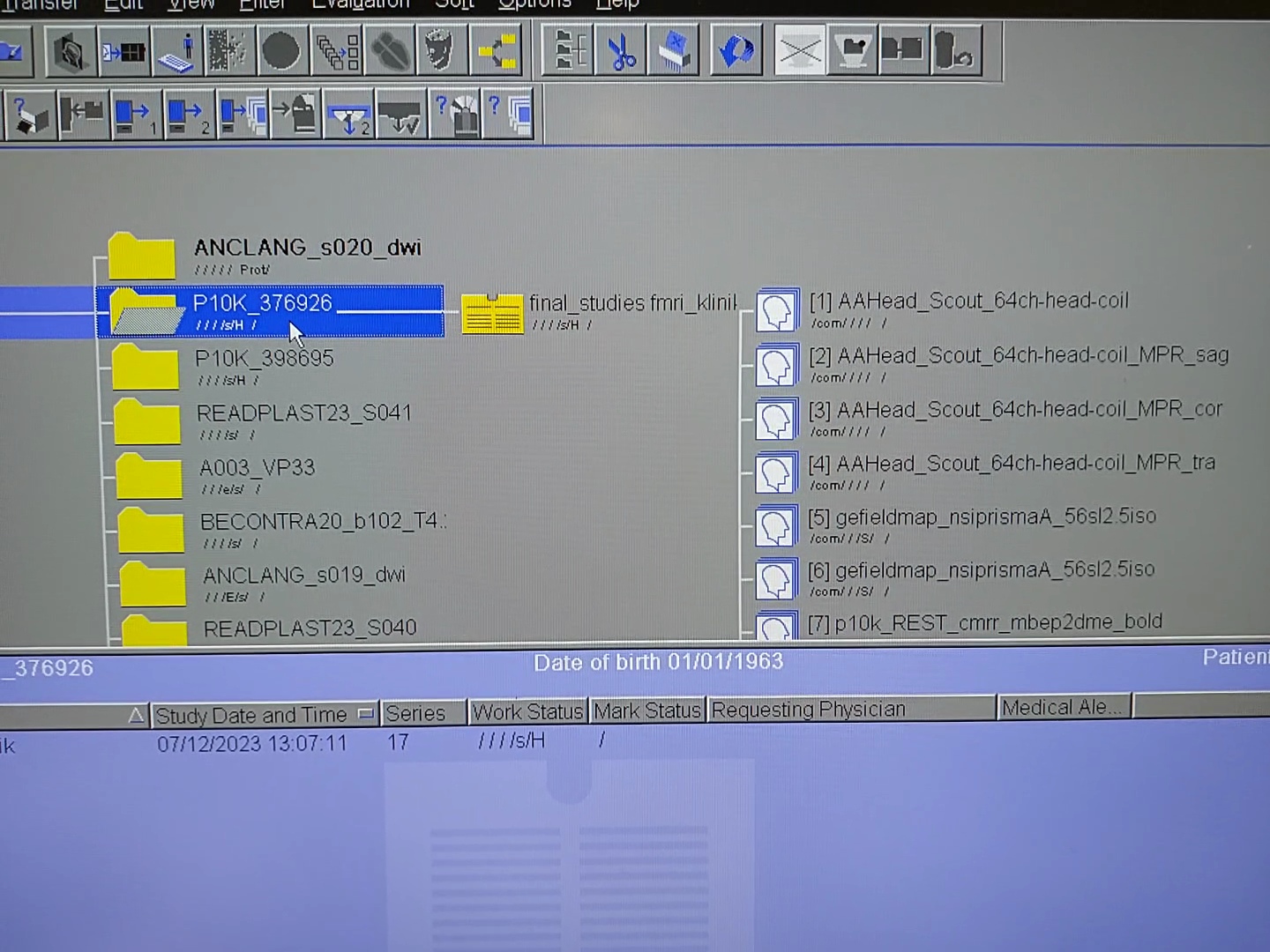
1. Go to Recent Data Files
Open the folder structure where you can see the last acquired data (as you would when exporting your data) and select the parent folder of your subject or the sequence you want to alter.
 or
or
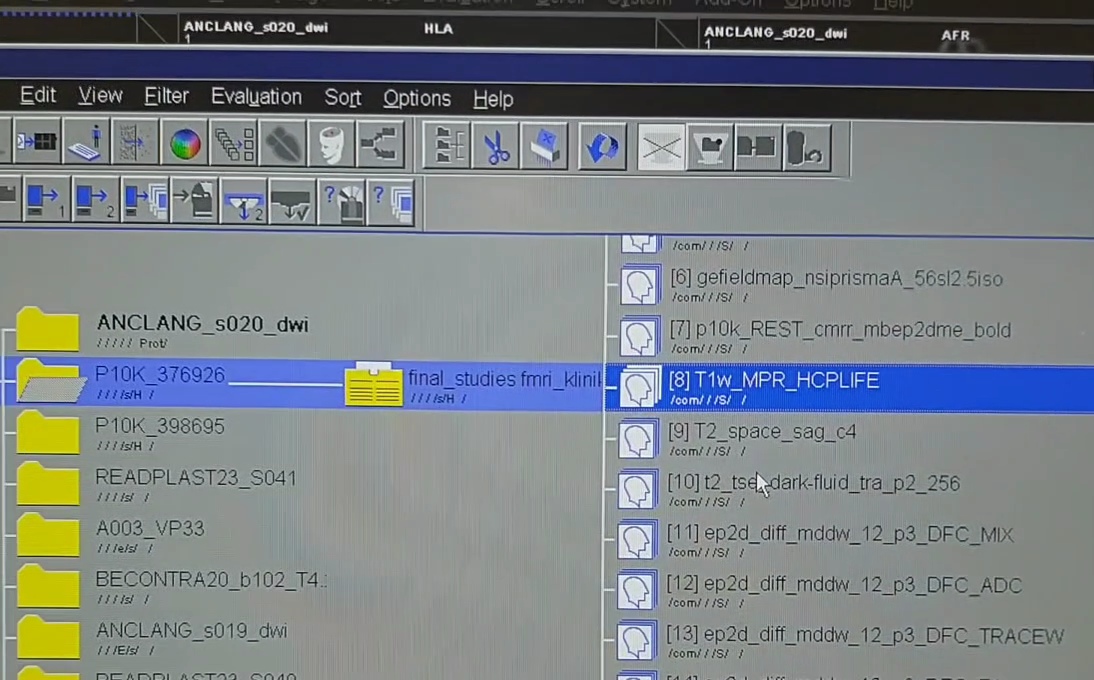
Your data folder and/or subfolder might be protected and thus not editable. Make sure to close the participant and all images of it loaded anywhere (viewing, 3D, etc.); the protection then gets removed. If not, it can be removed by right-clicking on the folder, but be careful with this.
2. Go to Correct
At the top-level bar, select Edit, then click on Correct.
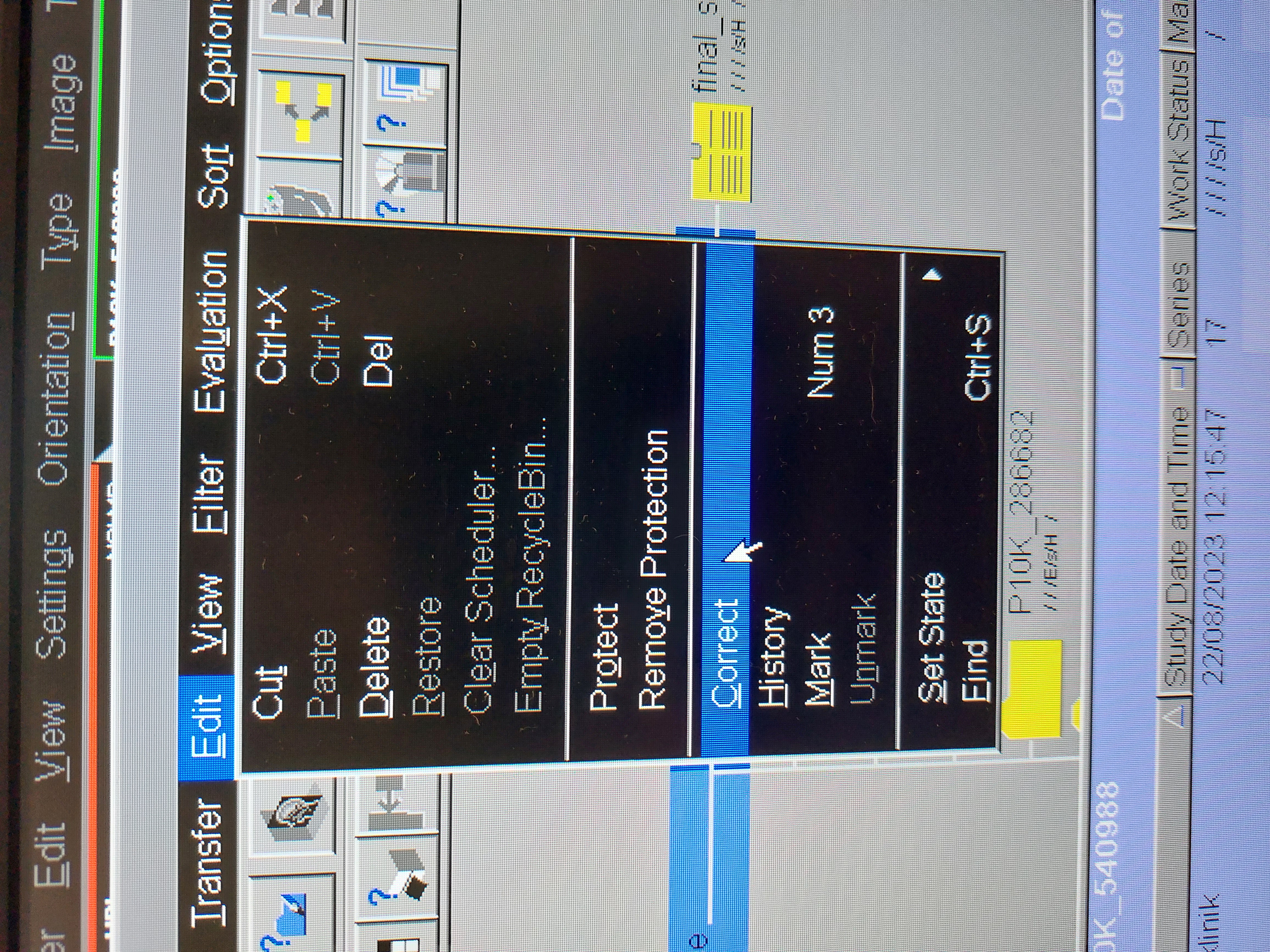
Several warnings about correcting the subject will pop up—read them carefully.
3. Changing the Name
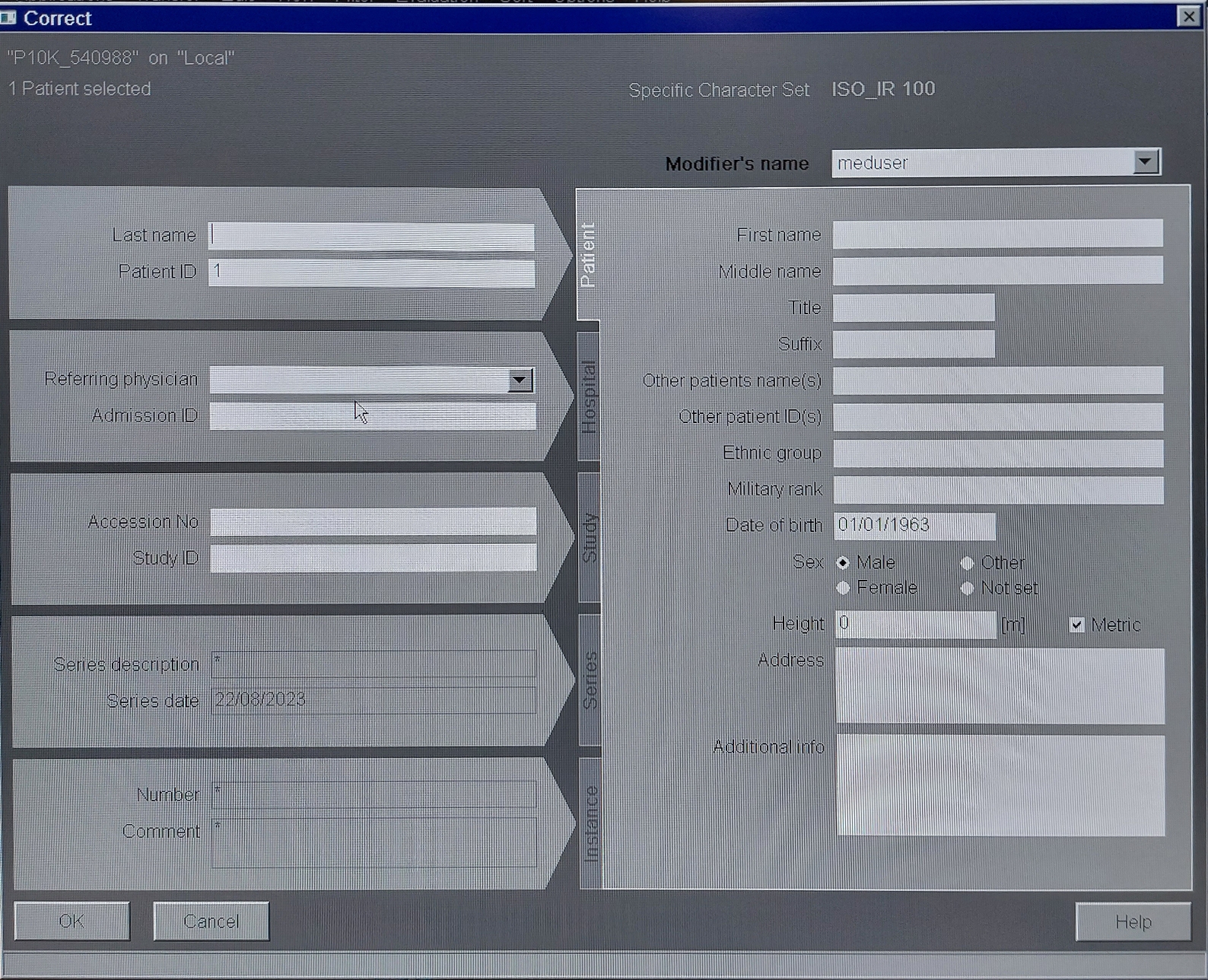
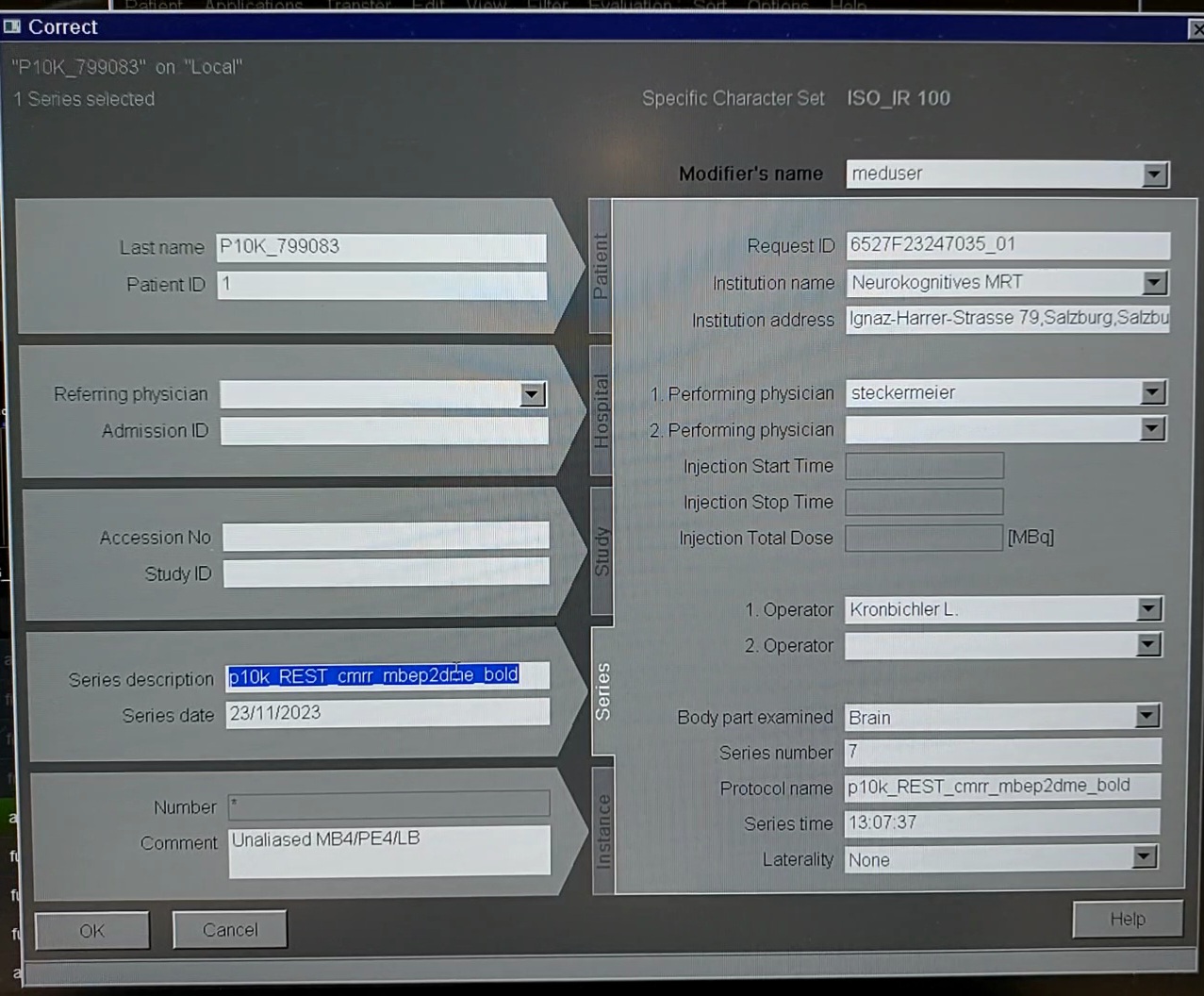
A pop-up window for changing all subject or sequence information appears. Here, you can change the name as well as other subject-related information (like year of birth, for example). Confirm your changes at the end.
or
4. Notify the ANC Team
Once the data is exported, the automatic conversion can start. Please contact the ANC team so automatic BIDS conversion can be started: